
Exploring Intune Products, Services, and Admin Center
What is the Intune admin center?
Intune Admin Center is the web portal where admins create policies, deploy apps, enroll devices, and monitor compliance. Think of it as the place where all your management decisions are made and tracked. Sign in with a Microsoft Entra ID (formerly Azure AD) account; Global Admin or Intune Admin roles required.
Step-by-Step Admin Center Navigation
- Dashboard Home: Overview widgets show device count (e.g., 1,247 Windows, 892 Android), compliance status (95% compliant), and recent alerts.
- Devices > All Devices: Filter by OS, enrollment date, last check-in. Actions: Wipe, Retire, Sync.
- Apps > All Apps: Add Win32 apps via. intunewin package or store apps. Assign to groups.
- Endpoint Security > Antivirus: Microsoft Defender integration for real-time threat detection.
- Reports > Device Compliance: Charts on non-compliant devices by reason (e.g., “OS outdated”).
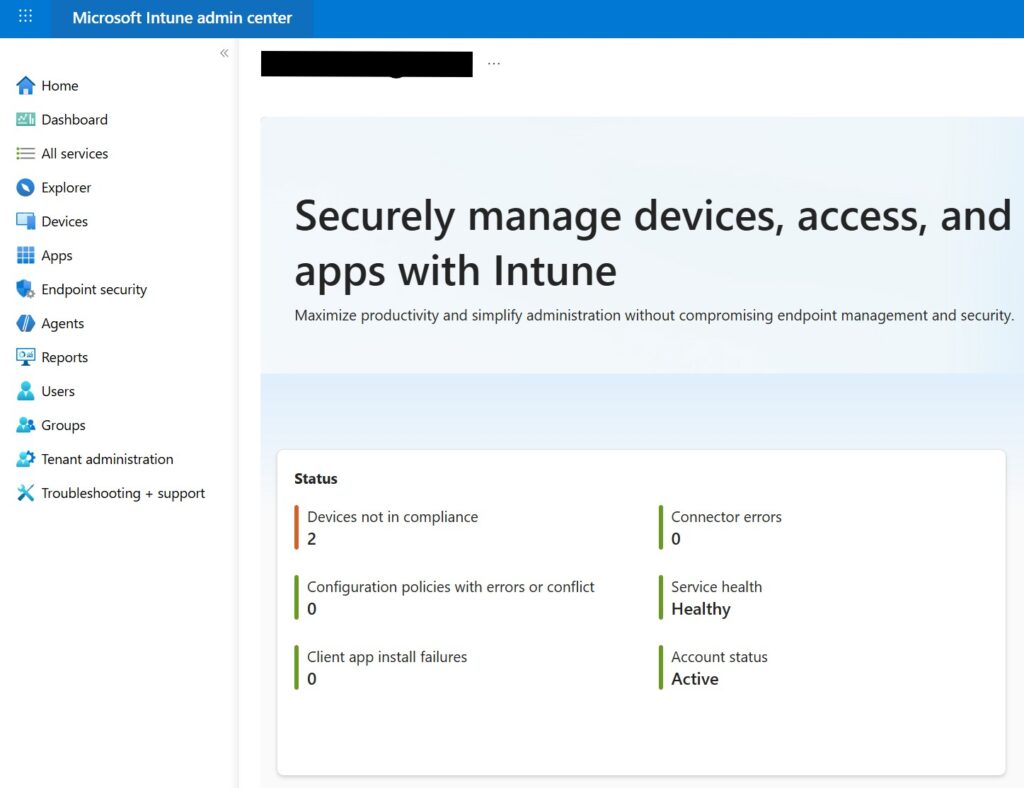
Key sections and what they do
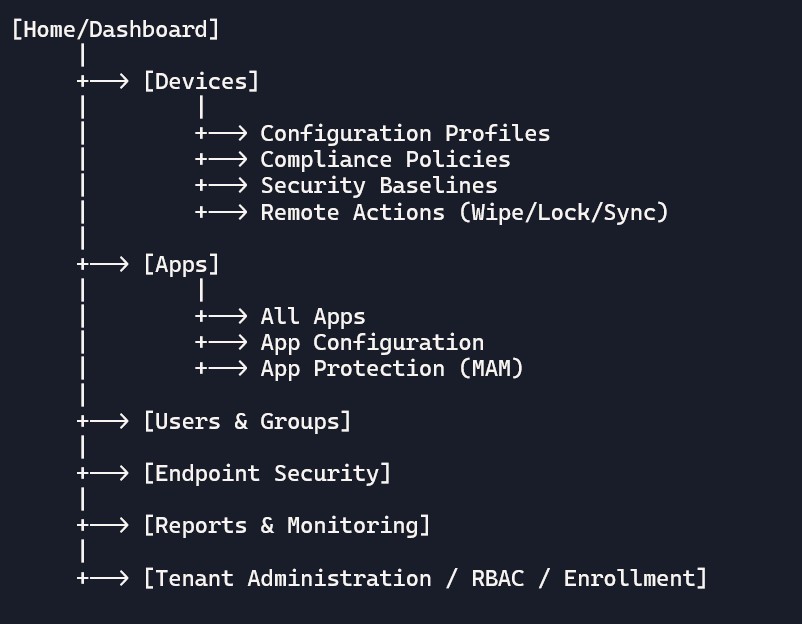
- Home & Dashboard: Overview of tenant health, alerts, and quick actions.
- Devices:
- All devices: Inventory, OS, ownership (Corporate/Personal), compliance state.
- Configuration: Profiles, settings catalog, templates, and device restrictions.
- Compliance: Compliance policies, statuses, and non-compliant lists.
- Security: Security baselines, endpoint security, defender integration.
- Remote actions: Wipe, restart, lock, sync, rename, retire.
- Apps:
- All apps: Add Microsoft 365, Store, LOB apps, web links.
- App configuration: Feed key-value settings to apps.
- App protection (MAM): Data protection policies for managed apps.
- App assignments: Required, available, uninstall targeting.
- Users & Groups:
- Users: Licenses, devices, app assignments, role-based views.
- Groups: Targeting for policies/apps (dynamic and static).
- Endpoint security: Attack surface reduction, antivirus, firewall, disk encryption.
- Reports & Monitoring: Compliance reports, audit logs, device logs, failures.
- Tenant administration: Roles (RBAC), connectors, custom domains, enrollment settings.
- Troubleshooting: Per-user/device drilldown tools and error insights.
Common tasks you’ll perform
- Create a device configuration profile: Wi-Fi, VPN, certificates, restrictions.
- Deploy apps: Add and assign with required/available/uninstall modes.
- Set compliance criteria: BitLocker on, antivirus on, passcode configured.
- Assign Conditional Access: Allow only compliant devices to access corporate resources.
- Run remote actions: Wipe a lost device, sync to force policy refresh.
- Monitor: Check which devices are non-compliant and why; remediate.
Sample diagram: navigating the admin center
Tips for beginners inside the portal
- Use search everywhere: Quickly find devices or policies.
- Use tags and naming conventions: e.g., “CITS-WiFi-India-HQ” or “CITS-Win11-Std”.
- Pin blades: Pin frequently used pages to the left rail.
- Check audit logs: See who changed what, and when.
Example: finding and fixing a non-compliant device
- Step 1: Devices → All devices → Filter by “Non-compliant”.
- Step 2: Open device → View “Compliance details”.
- Step 3: Identify failed setting (e.g., BitLocker off).
- Step 4: Remediate: push configuration profile or guide user.
- Step 5: Sync device → Recheck compliance report.
FAQ Section:
- What is Intune Admin Center?
A web portal to manage devices, apps, and policies in Intune.
- How do I access it?
Go to intune.microsoft.com and sign in with admin credentials. - Can I manage personal devices?
Yes, using app protection policies without full device control. - What are remote actions?
Tools like wipe, lock, and sync to control devices remotely. - Can I deploy apps from here?
Absolutely — add, assign, and monitor apps for all platforms. - What’s the difference between compliance and configuration?
Configuration sets up devices; compliance checks if they meet rules. - Can I see device health?
Yes, under Reports and Monitoring you’ll find compliance and security status. - Is it safe to use for large organizations?
Yes, it supports role-based access and scope tags for delegation.