
We all know that in today’s remote and hybrid work environments, ensuring devices stay aligned with company security policies is more critical — and more challenging — than ever. Thankfully, Windows 11 got a powerful new ally: Config Refresh, a feature announced by Microsoft that sets a new standard for mobile device management (MDM)
What is Config Refresh?
Config Refresh is a Mobile Device Management (MDM) capability in Windows 11 that automatically reapplies critical configurations at regular intervals. If a user changes or removes a setting, Windows restores it to the intended state—keeping compliance intact. Instead of waiting for long refresh cycles, IT teams can now ensure devices stay aligned with corporate configuration baselines much more frequently.
Admin Benefits with Config Refresh
Reset any settings managed via the Policy CSP.
Set refresh intervals from 30 minutes up to 24 hours (1,440 minutes) — giving far greater flexibility.
Leverage offline functionality (no constant server connectivity required).
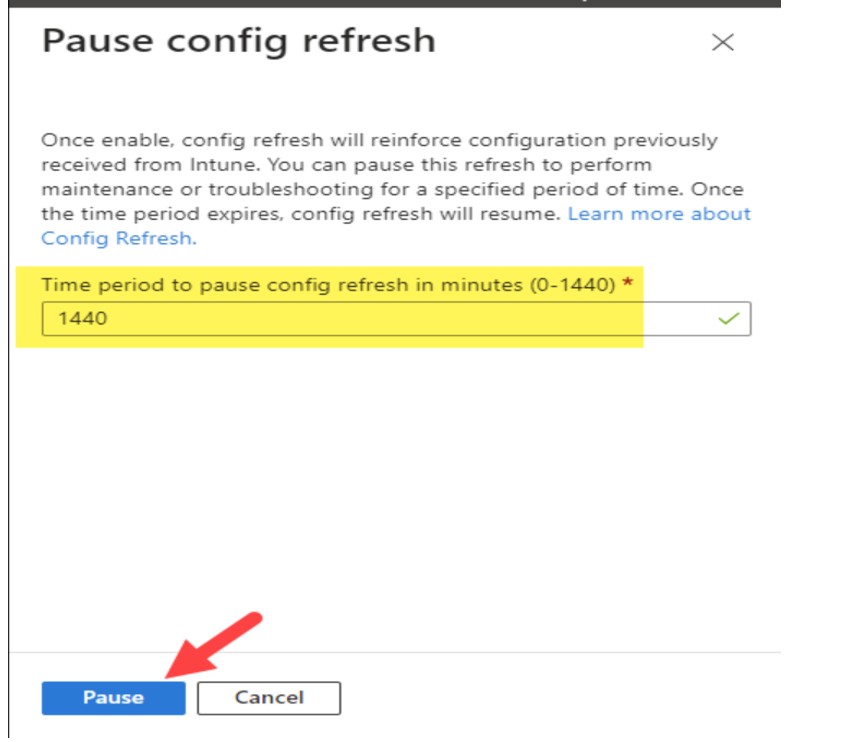
Pause the refresh for troubleshooting, with automatic resume after 24 hours.
Why This Matters for Your Organisation
Stronger compliance posture: Shorter refreshes mean devices are brought back into alignment quickly if drift occurs.
Better security hygiene: Mis-configurations or old settings don’t linger as long.
Flexibility & control: You decide the cadence that fits your risk tolerance and operational model.
Troubleshooting support: Need to diagnose why a policy isn’t applying? You can pause the policy and dig in.
How Config Refresh works on the device
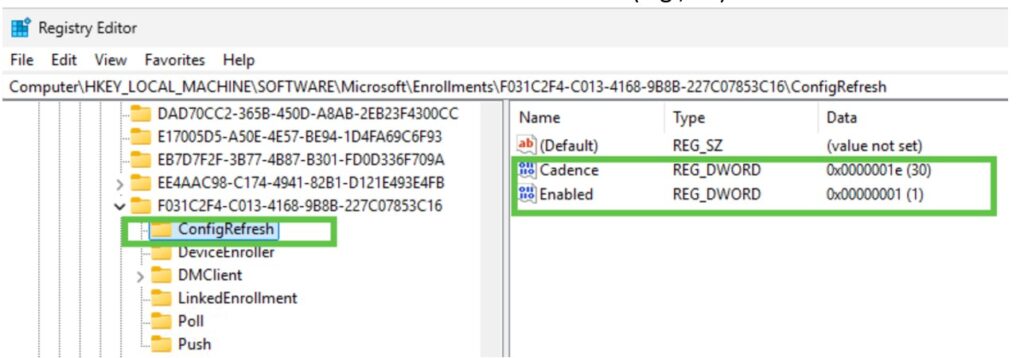
Local state: The device stores applied policies under the PolicyManager “current” registry hive and maintains a per-provider ConfigRefresh configuration under the Enrollments GUID.
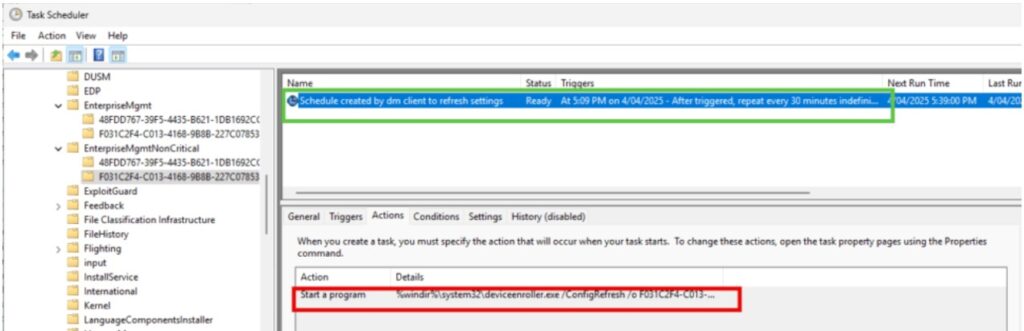
Scheduled task: Windows creates a scheduled task under Microsoft/Windows/EnterpriseMgmtNonCritical that runs deviceenroller.exe to reapply previously received policy settings at your configured cadence.
Offline enforcement: The reapplication runs using cached policy state, so it works even when the device is offline.
Understand Config Refresh vs Policy Sync
Policy Sync: Retrieves new or updated policies from Intune.
Config Refresh: Re-applies previously downloaded policies locally at a set cadence (30–1440 minutes).
Key Point: Policy Sync is still required; Config Refresh enforces consistency between syncs.
Config Refresh vs. Policy Sync in Intune
| Feature / Aspect | Config Refresh | Policy Sync |
| Definition | Local scheduled task that re-applies already delivered Intune policies on Windows 11 devices | Device check-in with Intune service to fetch new or updated policies |
| Trigger Mechanism | Runs automatically on the device via a scheduled task (EnterpriseMgmtNonCritical) | Initiated by Intune service; default check-in every ~8 hours or manual sync by user/admin |
| Frequency | Configurable between 30 minutes and 1440 minutes (24 hours) | Default ~8 hours; can be manually triggered from Intune portal |
| Scope of Action | Re-applies existing policies locally to ensure compliance | Retrieves new policies, updates, and app deployments from Intune |
| Network Dependency | Works offline (no need for internet connection) | Requires network connectivity to Intune service |
| Use Case | Ensures persistent compliance by correcting drift (e.g., user changes or malicious tampering) | Distributes new configurations, apps, compliance rules, and updates |
| Pause Option | Can be paused for troubleshooting or maintenance (0–1440 minutes) | Cannot be paused; sync is either scheduled or manually triggered |
| Availability | Supported only on Windows 11 (21H2, 22H2, and later) | Available on Windows 10, Windows 11, and other Intune-managed platforms |
| Primary Benefit | Faster enforcement of compliance without waiting for next Intune check-in | Ensures devices receive the latest policies and configurations from Intune |
Step-by-step: enable config refresh in Intune
1. Prerequisites and Scope
Windows builds: Windows 11 with recent updates; support began with the May 2024 non-security update and June 2024 security update. Validate your estate is on 22H2/23H2 with June 2024 or later before rollout.
Enrollment: Devices must be MDM-managed and have previously received policy settings (Policy Sync remains essential).
Policy Assignment: Identify target Microsoft Entra groups (security groups) for pilot vs production rollout.
Scope of enforcement: Targets policy settings delivered via the Policy CSP; stored under PolicyManager “current.” BitLocker CSP is included. Firewall, AppLocker, PDE, and LAPS are not reapplied by Config Refresh at this time (plan enforcement separately).
2. Configuration Profile Creation
1. Sign in to the Intune Admin Portal.
2. Navigate to:
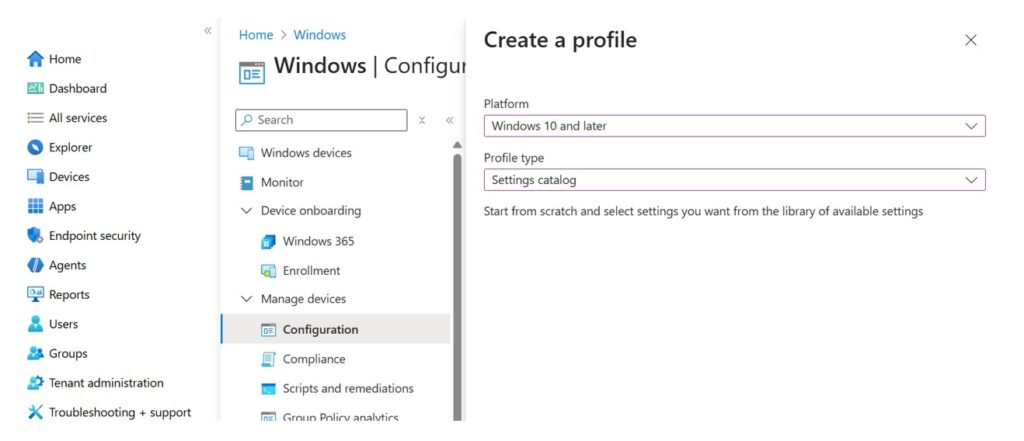
Devices → Windows → Configuration Profiles → Create → New Policy
3. Select:
Platform: Windows 10 and later
Profile Type: Settings Catalog
4. Define Name and Description (follow organizational naming standards).
3. Policy Settings
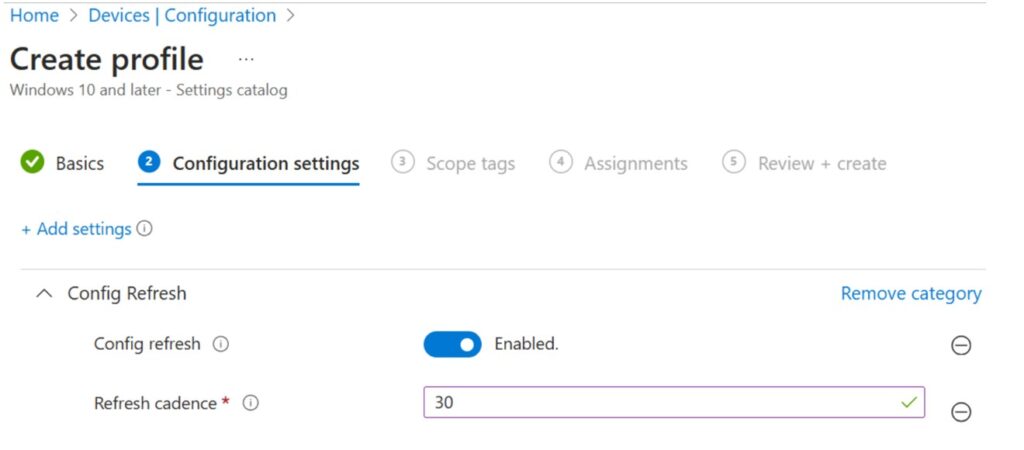
5. In Configuration Settings → Add Settings → Search “Config Refresh”.
6. Configure:
Config Refresh: Enabled
Refresh Cadence: Set interval (default 90 minutes; allowed 30–1440 minutes).
Example: Set cadence to 30 minutes for high-security environments.
4. Scope & Assignment
7. Add Scope Tags if required for RBAC.
8. Assign policy to target groups.
9. Review and create the policy.
5. Monitoring Deployment
In Intune portal, check Configuration Profile status.
Use View Report for device/user check-in details.
Monitor compliance via Intune Policy Assignment Status Reports.
6. Verification
Registry Check:
- Path: HKEY_LOCAL_MACHINE\SOFTWARE\Microsoft\Enrollments\<Intune Policy Provider GUID>\ConfigRefresh
- Ensure Enabled = 1 and Cadence = <value> (e.g., 30).
Task Scheduler Check:
- Location: Microsoft/Windows/EnterpriseMgmtNonCritical
- Verify cadence trigger and action (deviceenroller.exe).
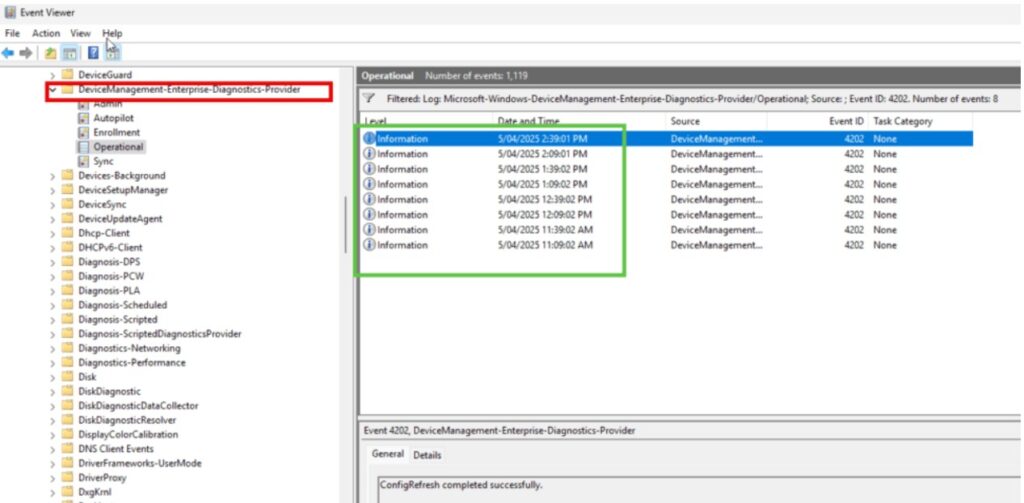
Event Viewer:
- Path: Microsoft-Windows-DeviceManagement-Enterprise-Diagnostics-Provider/Operational
- Event ID 4202 confirms “ConfigRefresh completed successfully”
7. Pause Config Refresh
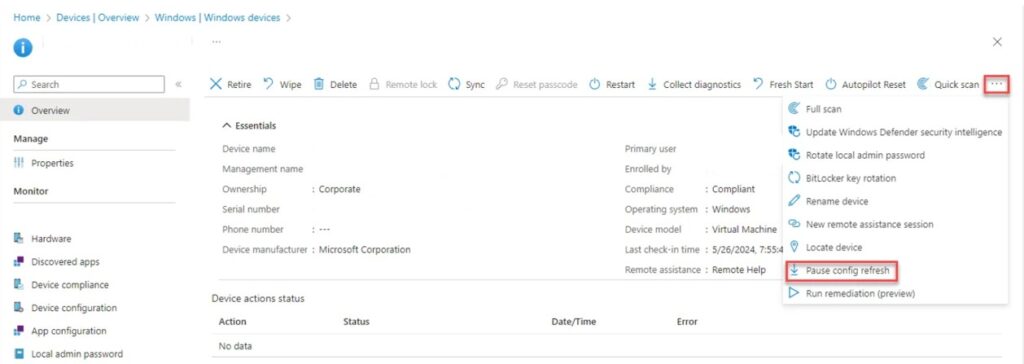
Pausing Config Refresh is not about disabling compliance but about creating a controlled window for maintenance or troubleshooting. Key use cases include:
- Troubleshooting and Testing: Prevent policies from being overwritten while investigating issues.
- Selective Updates: Apply or test specific changes without immediate enforcement of all policies.
- Maintenance Activities: Temporarily suspend enforcement during remediation or configuration changes
- Config Refresh can be paused up to 1440 minutes (24 hours) via Intune device actions.
8. Operational considerations and guardrails
- Policy sync dependency: Config Refresh only reapplies what the device already received; Policy Sync remains the source of truth for new or changed configurations。
- Cadence strategy:
- High-risk groups: 30–60 minutes (frontline, shared, factory-floor, privileged endpoints).
- General fleet: 240–480 minutes (balance security and battery/CPU).
- Low-risk/lab: 720–1440 minutes.
- Scope limitations: Plan alternate enforcement for Firewall, AppLocker, PDE, and LAPS; Config Refresh doesn’t reapply those via Policy CSP today.
- Help-desk readiness: Document how to check registry, scheduled task, and Event Viewer; clarify the difference between Policy Sync vs Config Refresh and when to use “Pause.”
- Offline scenarios: Expect reliable drift correction on traveling/offline devices; confirm by testing with network disconnected.
Troubleshooting quick wins
- Policy not reapplying:
- Lead-in: Confirm prerequisites and Intune assignment.
- Check Enrollments<GUID>\ConfigRefresh keys exist and match your cadence; ensure scheduled task is present and enabled.
- Verify the device previously received the relevant policies (PolicyManager\current shows expected entries).
- Workspace ONE / other MDMs:
- Lead-in: Use OMA-DM custom payloads to set Enabled and Cadence under DMClient Provider path; ensure XML formatting and line breaks are correct or it will fail to apply.
- Performance concerns:
- Lead-in: If endpoints feel “busy,” increase cadence, and exclude devices with heavy local change activity; validate in a pilot before scaling.
Expected Results
By implementing this plan, your organization will:
Strengthen security posture by ensuring critical policies are enforced at shorter, consistent intervals.
Minimize configuration drift by quickly restoring devices to their intended state whenever changes occur.
Improve compliance visibility through detailed Intune reporting and verification checks in the registry and Task Scheduler.
✅ Pro Tips for Maximising Value
Tailor cadence to risk: High-risk or sensitive device groups might benefit from 30- or 60-min refresh intervals; less critical devices might be fine at 6- or 8-hours.
Field-test before full rollout: Pause the feature on a test group, monitor logs, check for unintended impacts, then scale.
Document & train: Make sure help-desk and endpoint teams understand the new refresh cadence and how to interpret the logs.
Keep offline resilience in mind: Many devices go offline (travel, remote work); Config Refresh supports offline functionality so ensure your policy covers those use-cases.
Review policy scope: Config Refresh applies to Policy CSP-managed settings (and some others such as BitLocker CSP). It does not currently apply to Firewall, AppLocker, PDE or LAPS.
Final Thoughts
If you manage Windows 11 with Intune, configuring Config Refresh should be on your roadmap now. Config Refresh is more than a technical enhancement—it’s a strategic tool. It represents a meaningful leap forward in how device policy can stay aligned and secure — especially in dynamic, hybrid-work environments.
FAQ Section
- Does Config Refresh replace Policy Sync?
Answer: No. Policy Sync delivers and updates policies; Config Refresh enforces already-delivered settings on a local cadence between syncs. - Will it fix policies that never arrived?
Answer: No. It only reapplies what’s already present on the device. Ensure initial policy delivery and successful check-ins. - Does it work offline?
Answer: Yes. It uses cached policy state, so drift is corrected even without network connectivity. - Can I pause it?
Answer: Yes, per device, for 0–1440 minutes via Intune device actions.