
Planning Guide for Intune Deployment
Before deploying Microsoft Intune, it’s important to plan carefully. Planning ensures that your organization’s devices, apps, and users are managed securely and smoothly. Planning also helps avoid mistakes and ensures smooth deployment. Think of it like preparing a road trip—you check your destination, fuel, and route before driving.
Why Planning Matters First
Planning starts with clear goals like giving users email access while keeping data safe. Companies list apps such as Teams, Outlook, and Excel that workers need daily, then decide how to deploy them on phones, tablets, or laptops. For example, sales teams might get only Teams and Excel on mobile devices to save space, while full Microsoft 365 installs go on laptops. Personal devices need special care—use app protection policies to secure work data without controlling the whole phone.
Key Planning Steps
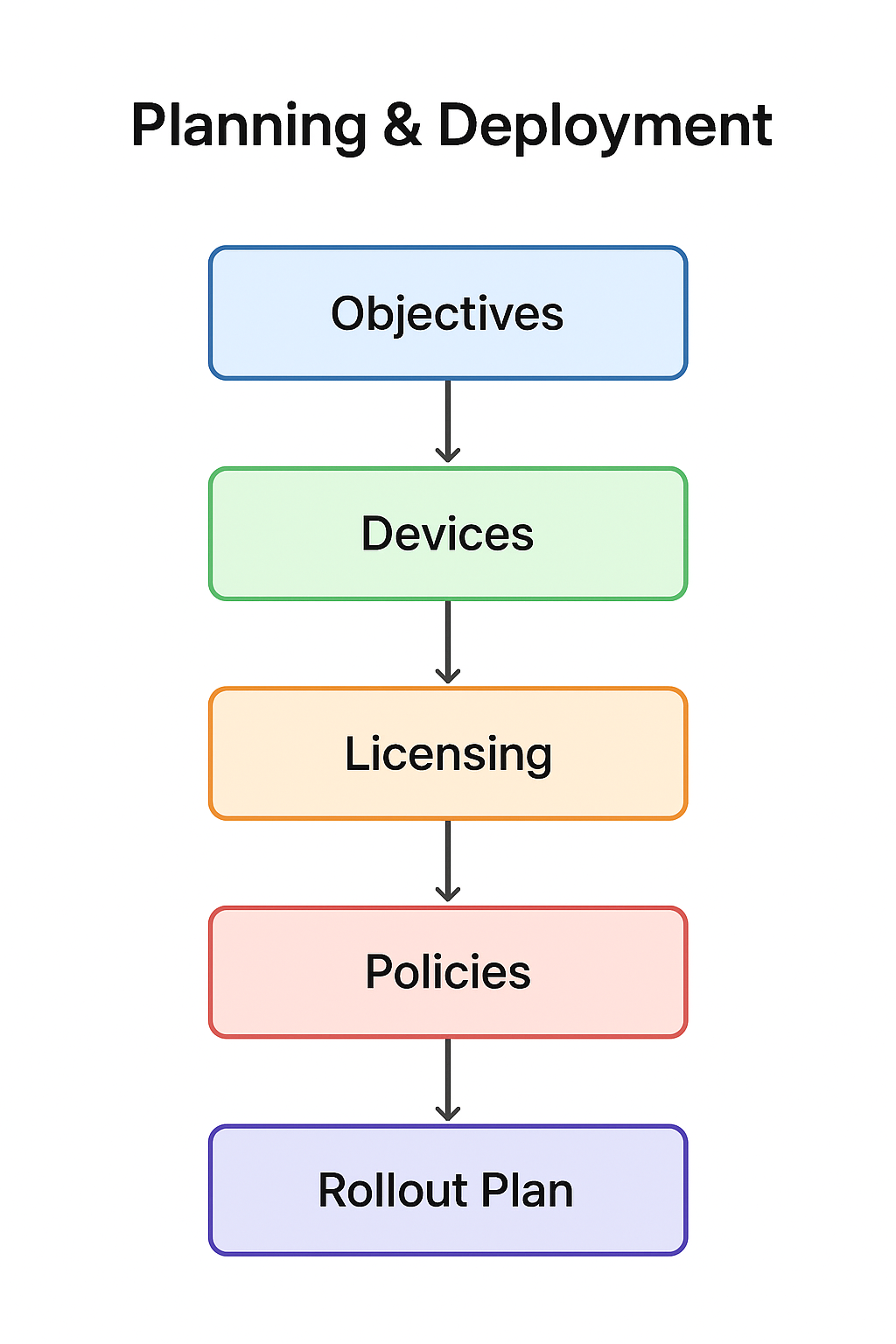
- Define Goals: Do you want to manage only mobile devices, or also laptops and desktops?
- Identify Users: Which groups of employees will be managed first? (e.g., IT staff, sales team).
- Device Types: List all devices (Windows, macOS, iOS, Android).
- Applications: Decide which apps need protection (Office apps, browsers, custom apps).
- Licensing & Costs – Intune comes with Microsoft 365 E5 or as a standalone license.
Tip: If you already use Configuration Manager, Intune may be included. - Security Policies: Plan rules like password strength, encryption, and conditional access.
Diagram: Planning Workflow
Real-World Example
Imagine a company with 200 employees:
- Sales team uses iPhones → needs email and Teams.
- Developers use Windows laptops → need Visual Studio and GitHub.
- Managers use iPads → need Office apps and OneDrive.
By listing these needs, IT can plan policies for each group.
Supported Operating Systems and Browsers
Intune supports many operating systems and browsers, but beginners must know which versions are supported to avoid compatibility issues.
Supported Platforms:
- Windows: Windows 10/11, LTSC editions, Cloud PCs.
- Apple: iOS/iPadOS 17+, macOS 14+.
- Android: Android 10+ (work profile, fully managed).
- Linux: Ubuntu 22.04/24.04, RedHat 8/9.
- Chrome OS: Supported but limited (no app protection policies).
Supported Browsers:
- Microsoft Edge (latest)
- Google Chrome (latest)
- Safari (Mac only)
- Firefox (latest)
Network Endpoints for Intune
Devices must stay connected to Intune’s cloud servers over the internet. If your firewall blocks this connection, Intune can’t manage or protect those devices properly.
Important Endpoints:
- *.manage.microsoft.com → Core Intune service
- *.wns.windows.com → Push notifications for Windows
- *.do.dsp.mp.microsoft.com → Delivery optimization
- time.windows.com → Time sync for Autopilot
Ports:
- TCP 80 (HTTP)
- TCP 443 (HTTPS)
Refer to Network endpoints for Microsoft Intune for more information.
Deployment Guide – Setting Up Intune
Deployment is the actual “onboarding” step. Depending on your current setup, you may migrate from another MDM or start fresh.
Scenarios:
- No MDM currently – Go straight to Intune.
- Third-party MDM (AirWatch (Workspace ONE), MobileIron) – Unenroll devices first, then enroll in Intune.
- Configuration Manager users – Use co-management or tenant attach.
- Group Policy users – Use Intune’s Settings Catalog to replace GPOs.
- Microsoft 365 Basic Mobility users – Migrate policies to Intune
Migration to Intune
Many organizations already use tools like SCCM or third-party MDM solutions. Migration means moving from those tools to Intune.
Migration Steps
- Assess Current Environment: List devices, apps, and policies in SCCM/MDM.
- Choose Migration Method:
- Co-management: Use SCCM + Intune together.
- Full Migration: Move everything to Intune.
- Pilot Testing: Start with 10–20 devices.
- Gradual Rollout: Expand to departments step by step.
- Decommission Old Tools: Once all devices are in Intune.
Deployment Steps & Recommended Configurations
Deployment is where planning becomes action. Beginners should follow step-by-step instructions.
Deployment Steps
- Set up Intune in Microsoft Endpoint Manager Admin Center.
- Enroll Devices:
- Windows → Company Portal app.
- iOS/Android → Company Portal app.
- macOS → Company Portal app.
- Create Policies:
- Device compliance (passwords, encryption).
- Configuration profiles (Wi-Fi, VPN, email, etc).
- Deploy Apps:
- Office apps, Teams, custom apps.
- Apply Conditional Access:
- Block access if device is not compliant.
Recommended Configurations
- Require PIN or password on all devices.
- Enable BitLocker (Windows) or FileVault (macOS).
- Block jailbroken/rooted devices.
- Use Conditional Access for sensitive apps (e.g., Outlook, SharePoint).
Diagram: Deployment Flow

Real-World Example
- IT admin logs into Endpoint Manager Admin Center.
- Creates a Device Compliance Policy → requires 6-digit PIN.
- Deploys Teams app to all enrolled devices.
- Tests by logging into Teams → blocked if device is non-compliant.
Protection & Configuration Levels
Intune offers three levels of protection. Think of them as “basic, medium, advanced.”
- Level 1 (Minimum): Basic PIN, antivirus, selective wipe.
- Level 2 (Enhanced): Encryption (BitLocker/FileVault), block rooted devices, stronger compliance.
- Level 3 (High): Advanced security (Mobile Threat Defense, password-less auth, Endpoint Privilege Management).
Best Practices for Beginners
Beginners often feel overwhelmed. These best practices make deployment easier.
✅ Best Practices
- Start small: pilot with 20 devices.
- Communicate with users: explain why Intune is being deployed.
- Document everything: policies, apps, configurations.
- Monitor regularly: use Intune reports.
- Keep OS and browsers updated.
FAQ Section:
Q. Do I need to upgrade old devices before using Intune?
Yes. Intune only supports modern operating systems (Windows 10/11, macOS latest 3 versions, iOS latest 2 versions, Android 8+). Devices running older OS versions must be upgraded first.
Q. Can I use Intune with SCCM at the same time?
Yes. This is called co-management. It allows you to use both SCCM and Intune together during migration.
Q. How do users enroll their devices?
Users install the Company Portal app (available on Windows, macOS, iOS, Android). Once signed in with their work account, the device is enrolled automatically.
Q. What happens if a device is non-compliant?
If a device doesn’t meet compliance rules (e.g., missing PIN, no encryption), Conditional Access can block access to apps like Outlook or Teams until the device is fixed.
Q. Which browsers are supported for accessing Intune portal?
Microsoft Edge, Google Chrome, Safari, and Firefox (latest versions).
Q. How should beginners start deployment?
Always begin with a pilot group (10–20 devices), test policies, and then expand gradually.
Q. Can Intune manage both company-owned and personal devices?
Yes. Intune supports corporate-owned and BYOD (Bring Your Own Device) scenarios, with different policies for each.